
How to Upgrade Windows 11 Home to Pro: Keys, Costs and Activation Explained
You can upgrade Windows 11 Home to Pro without reinstalling Windows — it does not touch your files, and takes about ten minutes including one restart. All you actually need is a Windows 11 Pro product key: the edition switch itself is built into Settings. What trips people up is everything around that simple fact: which key works, what it should cost, why activation sometimes fails at the final step, and whether any of the “free upgrade” methods floating around the internet are real. This guide covers the complete process, the three legitimate ways to do it, and the exact error codes you might meet on the way.ii
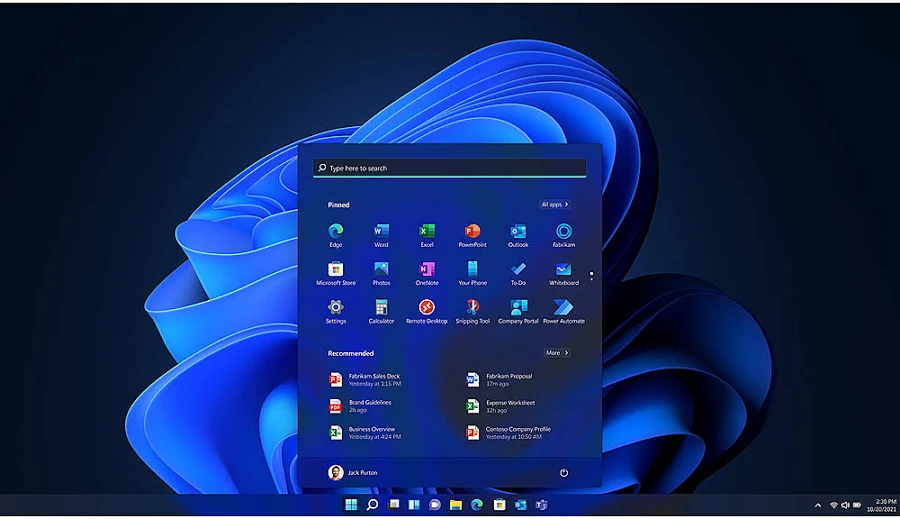
Windows 11 Home vs Pro: what you actually
Before spending anything, it is worth being clear about what Pro adds, because for some people the honest answer is “nothing you’ll use” — and for others it is the difference between a computer that works for their job and one that doesn’t.
| Feature | Windows 11 Home | Windows 11 Pro |
|---|---|---|
| BitLocker full-disk encryption | — (Device Encryption only, and only on supported hardware) | ✔ Full BitLocker with management |
| Remote Desktop | Client only — can connect out | ✔ Can also be connected to (host) |
| Hyper-V virtual machines | — | ✔ |
| Windows Sandbox | — | ✔ |
| Group Policy Editor (gpedit.msc) | — | ✔ |
| Join a company domain / Entra ID | — | ✔ |
| Kiosk mode (Assigned Access) | — | ✔ |
| Maximum RAM | 128 GB | 2 TB |
| Deferred / managed updates | Limited | ✔ Full control |
The three features that drive most real-world upgrades are BitLocker (laptop theft protection that actually encrypts the whole drive), Remote Desktop hosting (reach your office PC from home without third-party software), and Hyper-V (run Linux or a second Windows install in a VM). Group Policy matters if you like turning off Windows behaviours that Settings won’t let you touch. If none of those four rang a bell, stay on Home and spend the money on pizza.
If they did ring a bell, the good news is that this is one of the cheapest meaningful upgrades you can make to a PC.
What you need before you start
The list is short:
- A Windows 11 Pro product key — 25 characters in the format XXXXX-XXXXX-XXXXX-XXXXX-XXXXX. Where to get one, and for how much, is covered next.
- An activated Windows 11 Home installation. Check under Settings → System → Activation — it should say “Windows is activated”. If Home itself isn’t activated, fix that first; stacking an edition upgrade on an unactivated install is where the weirder errors come from.
- Five spare minutes and one restart. Your files, apps and settings are untouched — an edition upgrade is not a reinstall.
One genuinely useful preparation step almost nobody does: note down your current Home product key or make sure your Microsoft account is linked to the device (Settings → Accounts). If anything goes sideways, the linked digital licence is what lets Windows self-repair its activation.
What a Windows 11 Pro upgrade costs
There are two honest price points, and the gap between them is why this article section exists.
Microsoft’s route: open the Microsoft Store on the Home machine and buy the upgrade in-place for $99. It applies instantly, activation is automatic, and the licence attaches to your Microsoft account. Zero risk, highest price.
The retail key route: buy a Windows 11 Pro retail key from a third-party seller and enter it yourself using the steps below. Prices at specialist key stores run from around $10 to $25 — for the same 25-character string. If you go this way, you can buy a Windows 11 Pro product key from a store that states the licence type on the product page and delivers the key by email within minutes; whichever seller you use, those two things — a stated licence type and instant email delivery with an order record — are the minimum bar. A seller who won’t say whether a key is Retail or OEM before you pay is telling you something. Most key stores — including this one’s own Windows 11 Pro product key listing — sell the upgrade-ready retail version.
Why the price difference exists: volume licensing, regional pricing and grey-market resale are a legitimate, decades-old part of how Microsoft software moves through the world. The practical risk is not legality for the buyer — it is buying from a seller with no support desk, because if a key arrives already-used, the only fix is the seller replacing it. That is a customer-service problem, so pick a seller that has customer service.
A note on key types while you’re choosing: a Retail key can be moved to a new machine later (deactivate old, activate new). An OEM key binds to the first motherboard it activates on and dies with it. Both will upgrade Home to Pro; only one follows you to your next PC. The cheapest listing is usually OEM — that’s fine for a desktop you’ll run into the ground, less fine for hardware you replace often.
Method 1: Change product key in Settings (the normal way)
This is the method for almost everyone.
- Open Settings → System → Activation.
- Expand Upgrade your edition of Windows and click Change next to Change product key. (If you don’t see the upgrade section, just use Change product key — same dialog.)
- Enter your 25-character Windows 11 Pro key and click Next.
- Windows verifies the key, tells you it will upgrade the edition, and asks you to confirm with Start. Save your work first — the restart is not optional.
- The machine restarts once, sits on an “Adding features” screen for a few minutes, and comes back as Windows 11 Pro.
Verify it worked in two places: Settings → System → About should now say Windows 11 Pro under Windows specifications, and Settings → System → Activation should say “Windows is activated”. If the edition changed but activation shows an error, don’t panic and don’t re-enter the key five times — jump to the activation section below, because this exact situation has a known cause and a two-minute fix.
Method 2: Microsoft Store upgrade
Open the Microsoft Store app, search “Windows 11 Pro”, and buy the upgrade for $99. It applies without a restart in most cases and ties the Pro licence to your signed-in Microsoft account, which makes future reinstalls self-activating. This is the right choice if the machine is business-critical and the $75–$90 saving doesn’t matter to you. There is nothing else to say about it — it simply works, which is what you’re paying for.
Method 3: The command line (for IT people and the impatient)
Windows has shipped an edition-upgrade executable since Windows 8 called changepk.exe. From an elevated PowerShell or Command Prompt:
changepk.exe /ProductKey XXXXX-XXXXX-XXXXX-XXXXX-XXXXXThis does exactly what Method 1 does, minus the clicking, and is scriptable across a fleet. The older servicing tool works too if you need to see what your install can become first:
DISM /Online /Get-TargetEditions— which lists valid upgrade targets from the current edition (on Home you’ll see Professional in the list). Microsoft documents the full edition-upgrade matrix — which editions can move to which — in its Windows edition upgrade reference, which is worth a skim before doing anything clever like Home → Education.
Which method should you pick?
If you’re one person with one PC wanting to upgrade Windows 11 Home to Pro, Method 1 with a retail key is the answer for price, and the Microsoft Store is the answer for zero-thought convenience — there is no third consideration. The command line earns its keep the moment you have more than a handful of machines: changepk in a deployment script converts a batch of Home laptops to Pro unattended, which is exactly how small businesses that bought consumer hardware fix the “these came with Home” problem.
One tactical note for that scenario: buy the keys as Retail rather than OEM even though it costs a little more per seat, because business hardware gets replaced on a cycle, and Retail licences survive the cycle while OEM licences are buried with the machine. The break-even arrives with the first laptop you retire.
Can you upgrade Windows 11 Home to Pro for free?
This is one of the most-searched questions on the topic, so it deserves a straight answer rather than a wink.
The edition switch is free. The licence is not. Microsoft publishes generic “default” product keys whose only job is changing the edition — the Windows 11 Pro one is VK7JG-NPHTM-C97JM-9MPGT-3V66T, listed openly in Microsoft’s own KMS client key documentation. Enter it through Method 1 and your machine really will convert to Pro, with every Pro feature unlocked — and it will sit permanently unactivated: a watermark in the corner, personalisation locked, and nag screens, because a generic key deliberately contains no licence. It exists for IT staging and for people who intend to activate with a real key afterwards.
So the only genuinely free path to an activated Pro is already owning one: if the machine ran Windows 10 Pro at any point, or you have an unused Windows 10/11 Pro retail key in a drawer, you already have your licence (next section). Everything else “free” that YouTube offers you — activator tools, KMS scripts from forums, HWID hacks — is unlicensed at best and malware at worst, and a machine you care enough about to want BitLocker on is a strange place to run a mystery executable from a video description.
Given that real Pro keys cost about the price of a takeaway, the free-vs-paid debate is smaller than it looks.
Will a Windows 10 Pro key upgrade Windows 11 Home?
Yes — and this catches people out in the best possible way. Windows 10 and Windows 11 share a licensing family: a Windows 10 Pro product key is accepted by Windows 11’s Change-product-key dialog and both switches the edition and activates it. The same applies to digital licences: a machine that was ever activated as Windows 10/11 Pro has a Pro entitlement stored against its hardware on Microsoft’s activation servers, and a clean Windows 11 install on that machine will activate as Pro by itself when you skip the key entry during setup.
Check the drawer before you check out a shopping cart. Old retail boxes, a licence email from years ago, a decommissioned PC whose Retail (not OEM) key can be harvested — any of these is a valid ticket. You can list what’s currently on a machine from an elevated prompt with slmgr /dlv, which shows the channel (Retail/OEM/Volume) and partial key of the installed licence. Full key stores like flixeasy.com/windows sell current keys for every Windows edition if the drawer comes up empty, including a lifetime Windows 11 Pro retail licence that can move with you to your next machine — but a surprising number of readers of this exact article already own the key they need and don’t know it.
Activation after the upgrade — and the phone activation trick
Most of the time, activation completes silently during Method 1 and you never think about it. When it doesn’t, it is almost always one of two situations.
Situation one: the upgrade used the generic key internally. Windows sometimes performs the edition switch with the default key and then swaps in your real key on the next activation pass. If Activation shows an error immediately after the restart, first try the boring fix: Settings → System → Activation → Troubleshoot. The activation troubleshooter re-reads your hardware, checks the digital licence, and resolves the majority of post-upgrade errors on its own. If it offers “I changed hardware on this device recently”, that path re-attaches an account-linked licence.
Situation two: online activation is refused and Windows offers phone activation. This is normal on machines without internet, after motherboard swaps, on reinstalls, and occasionally for no visible reason at all. Run slui 4 from the Start menu search box — it jumps straight to the telephone activation wizard. Pick any country (the choice changes nothing), and Windows displays an Installation ID: a long number in groups labelled A through G.
The traditional next step is calling Microsoft’s automated line and reading fifty-odd digits to a robot, then typing back the Confirmation ID it reads to you — slow, and one misheard digit means starting over. The faster route: Flixeasy’s free Confirmation ID tool exchanges an Installation ID for the Confirmation ID directly in the browser — the same number the phone system would eventually read out. Type the CID into the wizard, click Activate, and the licence is permanently bound to that machine. Whichever way you get the CID, type the Installation ID digits manually rather than screenshotting them into an OCR tool; character misreads are the number-one cause of rejected IDs.
Common upgrade errors and what they actually mean
0x803FA067 — “Unable to upgrade your edition.” The classic Home-to-Pro error. Usual causes: the Windows Update service or the Windows License Manager service is stopped, or the upgrade was attempted while a feature update was mid-install. Restart the machine, make sure wlidsvc and Windows Update are running (services.msc), and re-enter the key. If it persists, enter the generic Pro key first to force the edition switch, then replace it with your real key under Change product key.
0xC004F213 — “No product key found on this device.” Appears after the edition switch when Windows is Pro but holds no licence — often after upgrading via the generic key. Not a failure; just enter your purchased key at Settings → System → Activation → Change product key.
0xC004C003 — “The activation server determined the key is blocked or in use.” With a fresh third-party key, this is the one that means contact the seller: the key was activated the maximum number of times or revoked upstream. A reputable seller replaces it against your order number without argument. With your own old key, it usually means the key is OEM and married to dead hardware.
0x80070005 — access denied during activation. A permissions problem, not a licence problem. Run the activation step (or slmgr /ipk) from an elevated prompt.
The upgrade hangs on “Working on it” / “Adding features.” Give it twenty minutes before judging — on a slow disk the feature-staging step is legitimately long. Past that, restart; the process is transactional and resumes or rolls back cleanly. Windows very rarely bricks itself on an edition switch, which is one advantage of it not being a reinstall.
Pro features missing after a successful upgrade. If About says Pro but gpedit or Hyper-V are absent, the feature-staging step was interrupted. Run sfc /scannow, then check optional features — Hyper-V additionally needs enabling under Turn Windows features on or off and needs virtualisation switched on in the BIOS/UEFI.
Frequently asked questions
Does upgrading Windows 11 Home to Pro delete files or apps?
No. An edition upgrade unlocks features already present in the installation; it is not a reinstall. Everything stays. Back up anyway, because that advice has never once been regretted.
How long does the upgrade take?
Five to fifteen minutes including one restart, mostly spent on the “Adding features” screen.
How much does it cost to upgrade Windows 11 Home to Pro?
$99 through the Microsoft Store; roughly $10–25 for the same upgrade using a retail product key from a third-party key seller.
Can I use one Pro key on two computers?
No — one key, one activated machine. A Retail key can be moved (deactivate old machine, activate new one) but never used on two at once. Multi-device listings you see are multiple keys sold as a bundle.
Will the upgrade survive a clean reinstall of Windows?
Yes. Activation creates a digital licence tied to your hardware (and Microsoft account, if linked). Reinstall Windows 11 Pro, skip the product key during setup, and it re-activates automatically.
Can I go back to Windows 11 Home afterwards?
Practically, only via a clean reinstall of Home. There is no supported one-click downgrade, so be sure before you switch — though nobody who upgraded for a reason ever wants to.
Is a cheap key from a reseller legal?
Buying and using genuine retail keys is lawful in most jurisdictions — the EU’s Court of Justice explicitly upheld resale of software licences (UsedSoft v Oracle, 2012). The practical risk is seller quality, not the police. Buy where there is support and a refund policy.
Do I need a Microsoft account to upgrade?
No — a product key works on a local account. Linking a Microsoft account afterwards is still smart, because it makes the licence recoverable after hardware changes.
My machine came with Windows 11 Home in S Mode — does this change anything?
Leave S Mode first (Microsoft Store → Switch out of S Mode, free and one-way), then upgrade the edition as above. Attempting the key entry while in S Mode fails confusingly.
Does Windows 11 Pro make my PC faster?
No. Home and Pro share the same kernel, scheduler and drivers; benchmarks are identical. Pro adds capabilities, not speed. Anyone selling the upgrade as a performance boost is selling something else.
Can I upgrade Home to Pro on a machine I don’t have internet on?
Yes — enter the key normally, let online activation fail, then run slui 4 and use the telephone-activation route described above. The edition switch itself happens locally; only the licence check wants a connection.
Windows 10 reached end of support — does that affect this upgrade?
Only as motivation. Windows 10 stopped receiving free security updates in October 2025, which is why so many machines moved to Windows 11 — and why the Home-to-Pro question got popular. The upgrade path above applies to any activated Windows 11 Home machine regardless of what it ran before.
The short version
You upgrade Windows 11 Home to Pro in ten minutes through Settings → System → Activation → Change product key. The Microsoft Store charges $99; a retail key from a reputable seller does the identical thing for a fraction of that. Check first whether you already own a Windows 10/11 Pro key or digital licence, because it will still work. If activation balks after the switch, the troubleshooter fixes most cases, and phone activation with a Confirmation ID handles the rest without an actual phone call. The only wrong way to do this upgrade is the “free activator” someone’s video promised — everything legitimate about Pro costs either $99, a takeaway’s worth of key, or nothing at all because the licence was in your drawer the whole time.